TaskLaunch

User Guide

SEARCHABLE KNOWLEDGE BASE FOR EVERY CURRENT TASKLAUNCH MODULE

02Core Workflow

Tasks

Create tasks, start focused work sessions, set goals, add notes, and review per-task history.

Open module
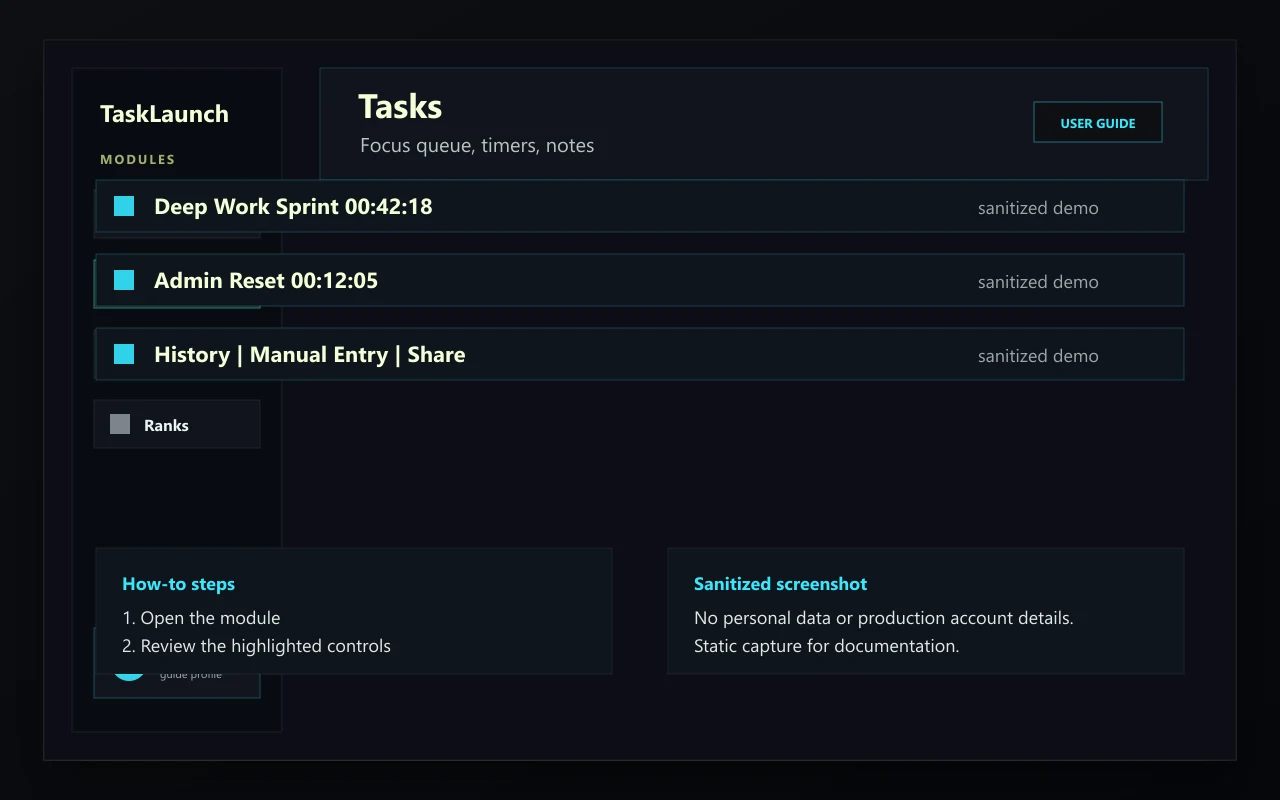
Sanitized TaskLaunch Tasks screenshot showing task cards, timers, and task actions.
Sanitized demo screenshot for Tasks.

What it does

  • Tasks are the main work items in TaskLaunch. Each task can track elapsed time, completion progress, milestones, and history.
  • Task cards expose quick actions for start, stop, edit, reset, history, manual entry, sharing, and export where supported.
  • Focus sessions can carry notes, checkpoint alerts, and time-goal completion flows into your history.

How to use it

Create and run a task

  1. Open Tasks.
  2. Use Add Task and enter a clear task name.
  3. Start the task when you begin working.
  4. Stop the task when the session ends so elapsed time and XP can be recorded.

Review task-specific history

  1. Open the task action menu.
  2. Choose History to expand inline history.
  3. Select View Summary for a session summary or pin the chart if you want it to reopen later.

Tips

Short, concrete task names make dashboard and history summaries easier to scan.

Use manual entries when you forgot to start a timer but still want an accurate history.

03Planning

Schedule

Plan tasks across the week using scheduled placement, optimal productivity days, and drag previews.

Open module
Sanitized TaskLaunch Schedule screenshot showing a weekly task planning board.
Sanitized demo screenshot for Schedule.

What it does

  • Schedule gives Tasks a calendar-style planning view without replacing the single task list.
  • Tasks can be arranged by day and time, with visual placement previews while moving scheduled items.
  • Settings can highlight optimal productivity days so recurring planning fits your preferred work rhythm.

How to use it

Place a task on the schedule

  1. Open Tasks and switch to Schedule.
  2. Choose the task you want to place.
  3. Move it to the intended day and time block.
  4. Check the preview for overlaps before committing the placement.

Tips

Use Schedule for intention, not punishment. Move work when your day changes.

Set optimal productivity days in Settings when you want scheduled work to prefer your strongest days.

04Insights

Dashboard

Read today, weekly progress, momentum, activity heatmaps, task completion, and productivity summaries.

Open module
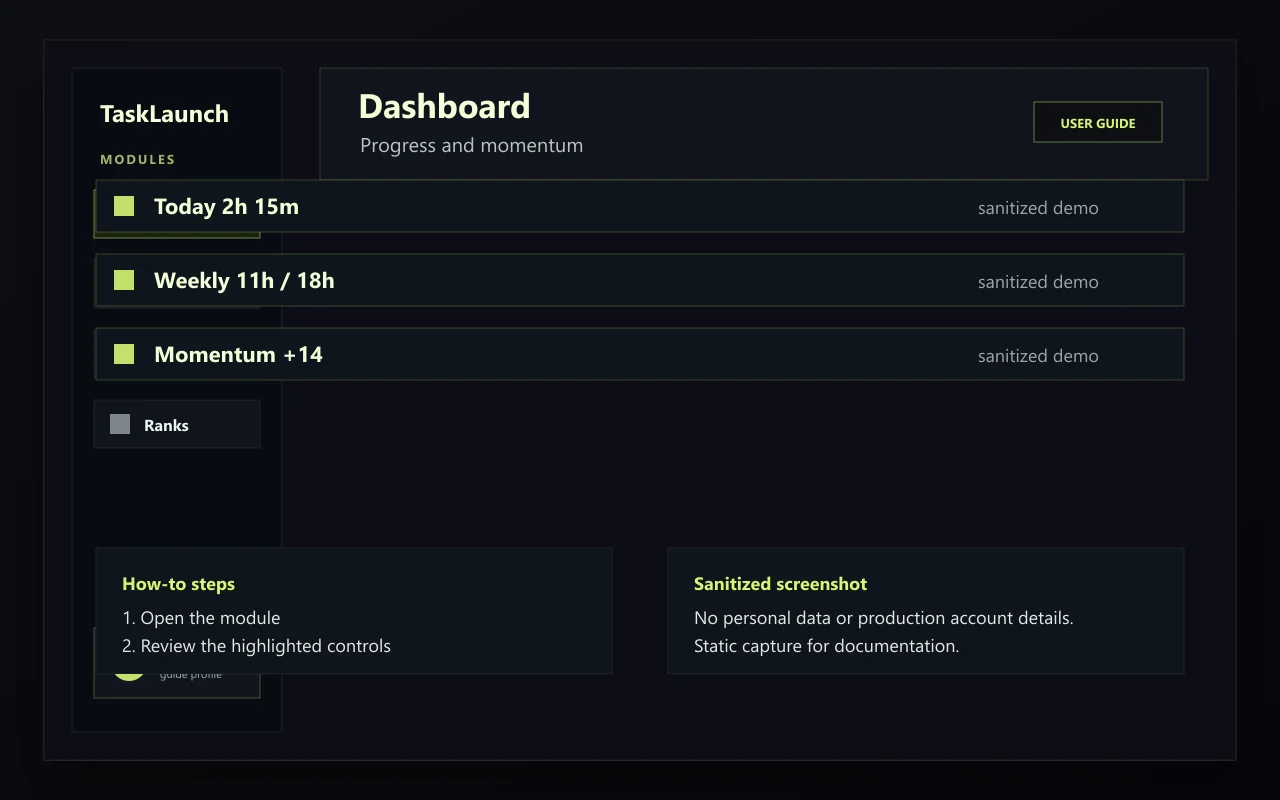
Sanitized TaskLaunch Dashboard screenshot showing progress cards and activity summaries.
Sanitized demo screenshot for Dashboard.

What it does

  • Dashboard turns task history into progress indicators, charts, and summaries.
  • Cards emphasize today, weekly progress, momentum, task completion, and activity overview.
  • Dashboard modules are designed for scanning, comparison, and deciding what to do next.

How to use it

Use Dashboard to choose your next task

  1. Open Dashboard.
  2. Review today and weekly progress.
  3. Check the task completion and activity cards for gaps.
  4. Return to Tasks and choose the next useful session.

Tips

Dashboard is most useful after a few logged sessions because charts need history to summarize.

Treat low activity as context, not failure; the app is built around recovery and restarting.

05History

History Manager

Review, sort, summarize, manually add, bulk-select, and delete historical task sessions.

Open module
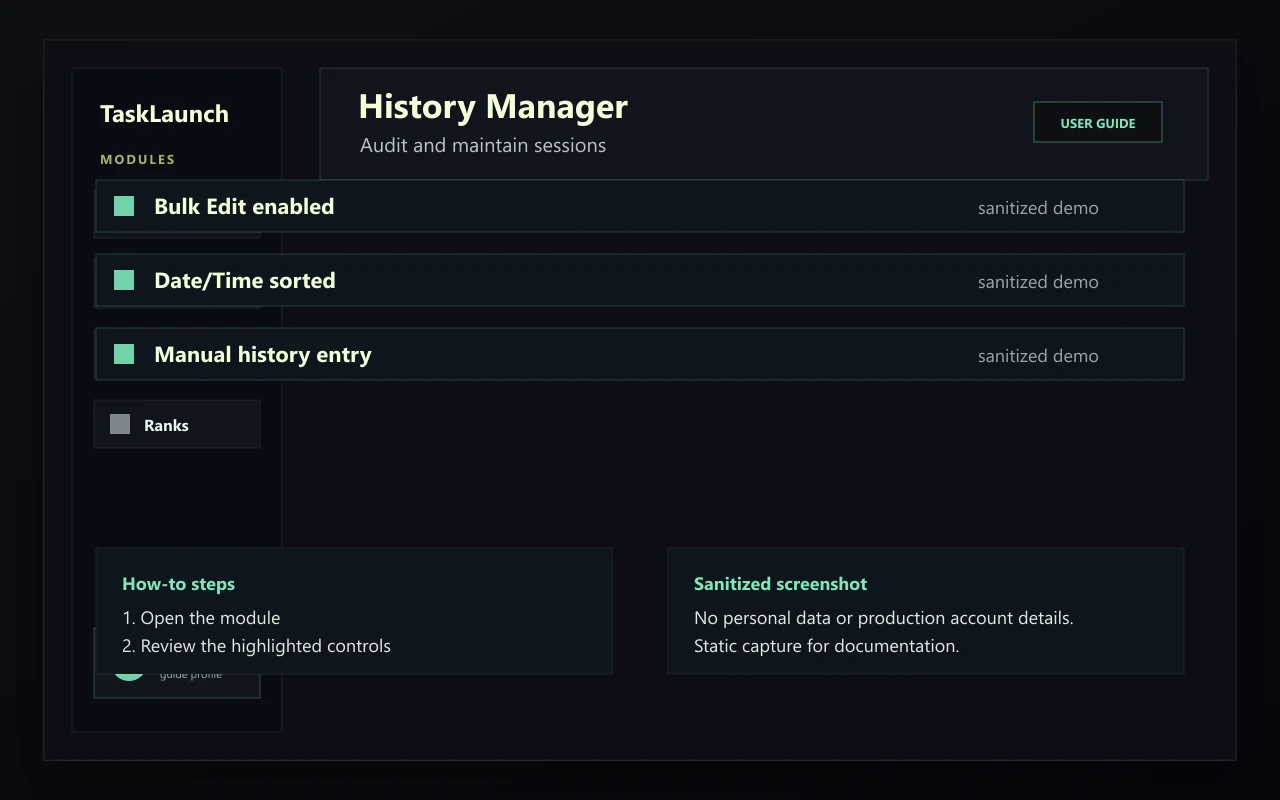
Sanitized TaskLaunch History Manager screenshot showing dated history rows and bulk controls.
Sanitized demo screenshot for History Manager.

What it does

  • History Manager is the full-screen workspace for task history maintenance.
  • Rows can be grouped by task and date, sorted by Date/Time or Elapsed, selected hierarchically, and bulk deleted.
  • History summaries and notes help explain what happened during specific work sessions.

How to use it

Add a manual history entry

  1. Open History Manager.
  2. Find the task that should receive the missing time.
  3. Choose manual entry for that task.
  4. Set Date/Time, Elapsed, and optional notes, then save.

Bulk edit history safely

  1. Choose Bulk Edit.
  2. Select a task, date group, or individual rows.
  3. Review the selected count and delete summary.
  4. Confirm only when the selected rows are exactly what you intend to remove.

Tips

Sort Date/Time and Elapsed columns when auditing unusual history entries.

Use summaries before deleting entries if you need to understand what the session represents.

06Social

Friends

Manage friend requests, view friend profiles, and share selected task summaries.

Open module
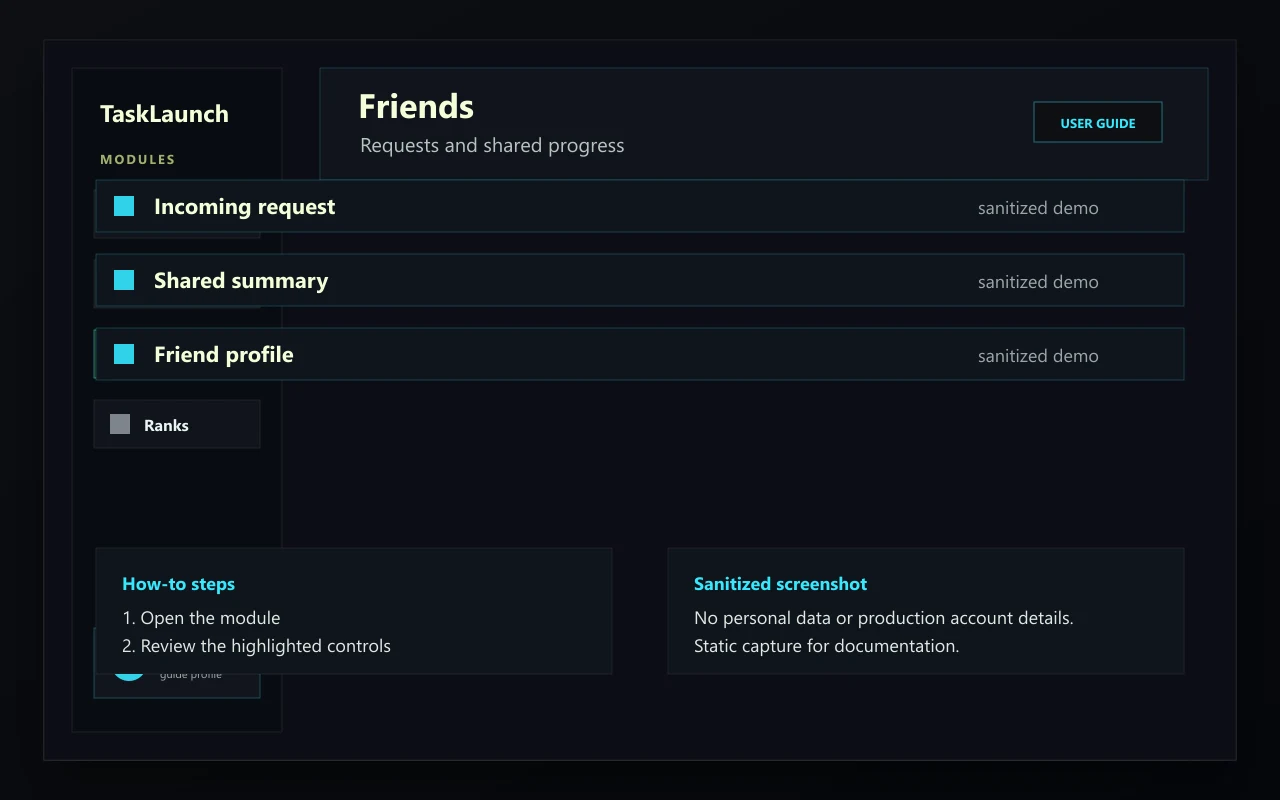
Sanitized TaskLaunch Friends screenshot showing friend cards and request actions.
Sanitized demo screenshot for Friends.

What it does

  • Friends adds optional social accountability without changing your private task list by default.
  • Friend profiles can show display identity, rank context, and shared task summaries where sharing is enabled.
  • Friend request alerts appear in navigation badges when there is pending activity.

How to use it

Send and manage friend requests

  1. Open Friends.
  2. Search or enter the username for the person you want to add.
  3. Send a request and wait for acceptance.
  4. Use the Friends screen to review incoming requests and current friends.

Tips

Share only the task summaries you actually want another person to see.

Use Friends for accountability when it helps, and keep the workflow solo when it does not.

07Progress

Leaderboards and XP

Understand XP, ranks, badges, weekly standings, global standings, and rival leaderboards.

Open module
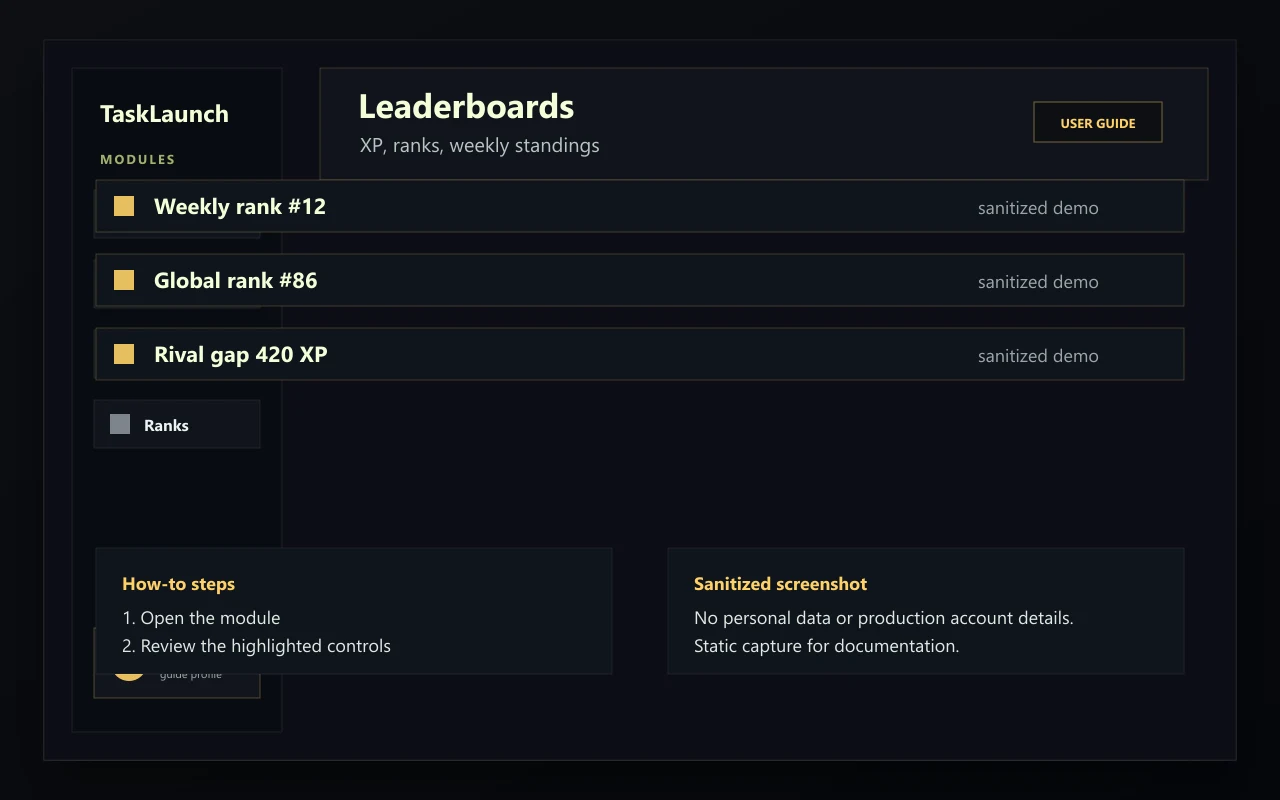
Sanitized TaskLaunch Leaderboards screenshot showing XP rankings and rank badges.
Sanitized demo screenshot for Leaderboards and XP.

What it does

  • XP is awarded from recorded task effort and supports rank progression.
  • Leaderboards include global, weekly, and rival views so progress can be compared at different scopes.
  • Rank badges and promotions are visual feedback, while the underlying value comes from logged effort.

How to use it

Check rank progress

  1. Open Leaderboards or select the XP/rank header.
  2. Review current XP, rank, and progress toward the next rank.
  3. Use weekly and rival tabs to compare short-term progress.

Tips

Weekly views are better for fresh motivation; global views are long-term context.

Rank progress follows logged effort, so accurate task history matters.

08Account

Account and Profile

Manage username, avatar, rank badge, plan status, sign-out, and account deletion.

Open module
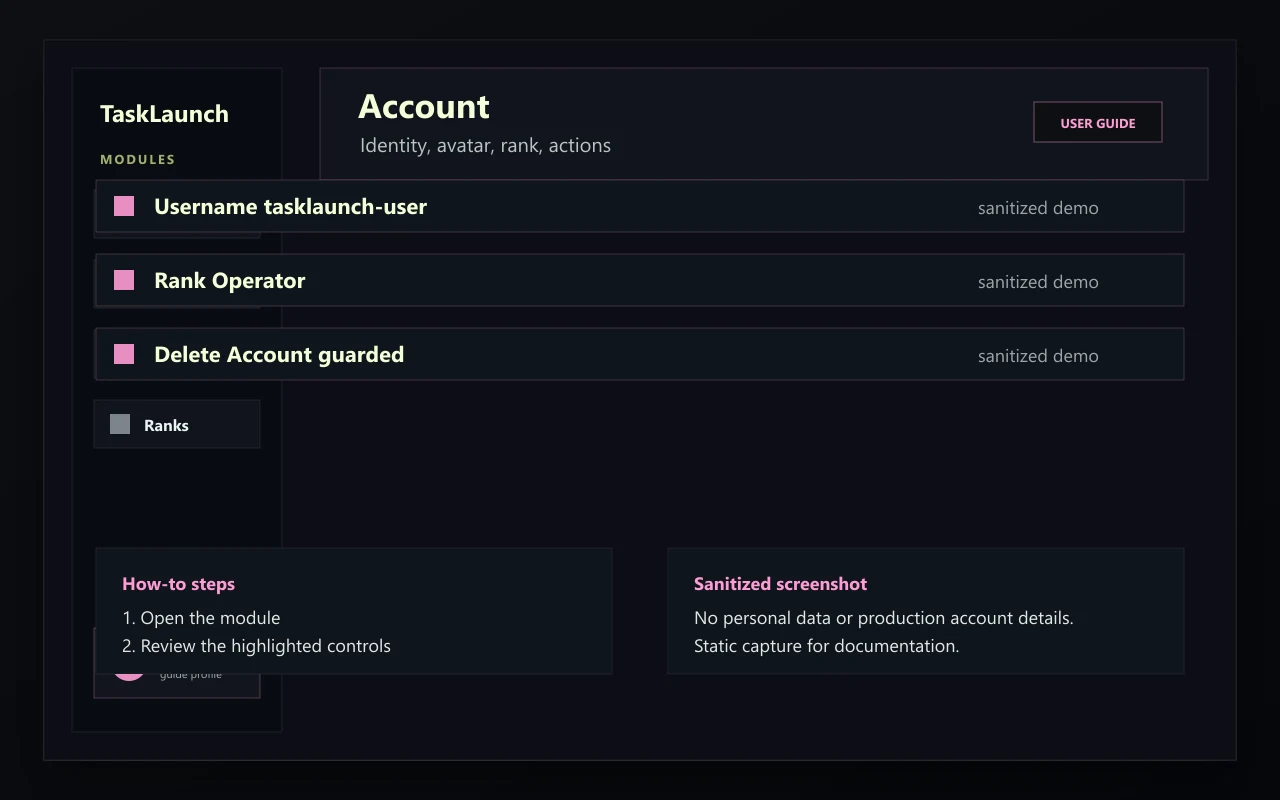
Sanitized TaskLaunch Account screenshot showing profile identity, XP, rank, and account actions.
Sanitized demo screenshot for Account and Profile.

What it does

  • Account shows the signed-in identity, username, email, member date, XP, rank, and selected badge.
  • Avatar and rank controls affect how your profile appears in supported app surfaces.
  • Sign out and account deletion live here because they affect the whole signed-in workspace.

How to use it

Update profile identity

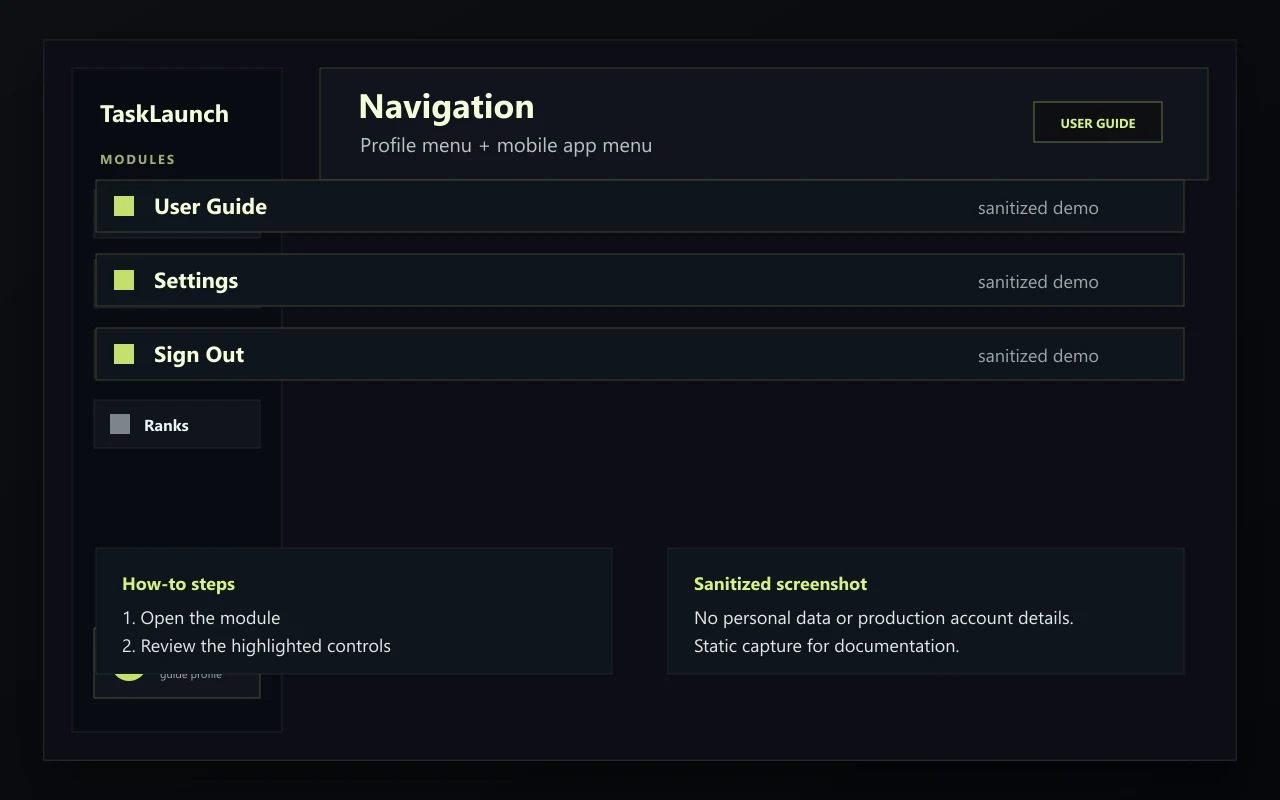
  1. Open Account from the profile menu or mobile top bar avatar.
  2. Choose the avatar or username control you want to change.
  3. Save the change and wait for the profile sync notice.

Tips

Use a recognizable username if you plan to use Friends or Leaderboards.

Delete Account is permanent; export or review data first if you need a record.

09Configuration

Settings

Configure preferences, appearance, sounds, alerts, notifications, privacy links, data tools, and reset options.

Open module
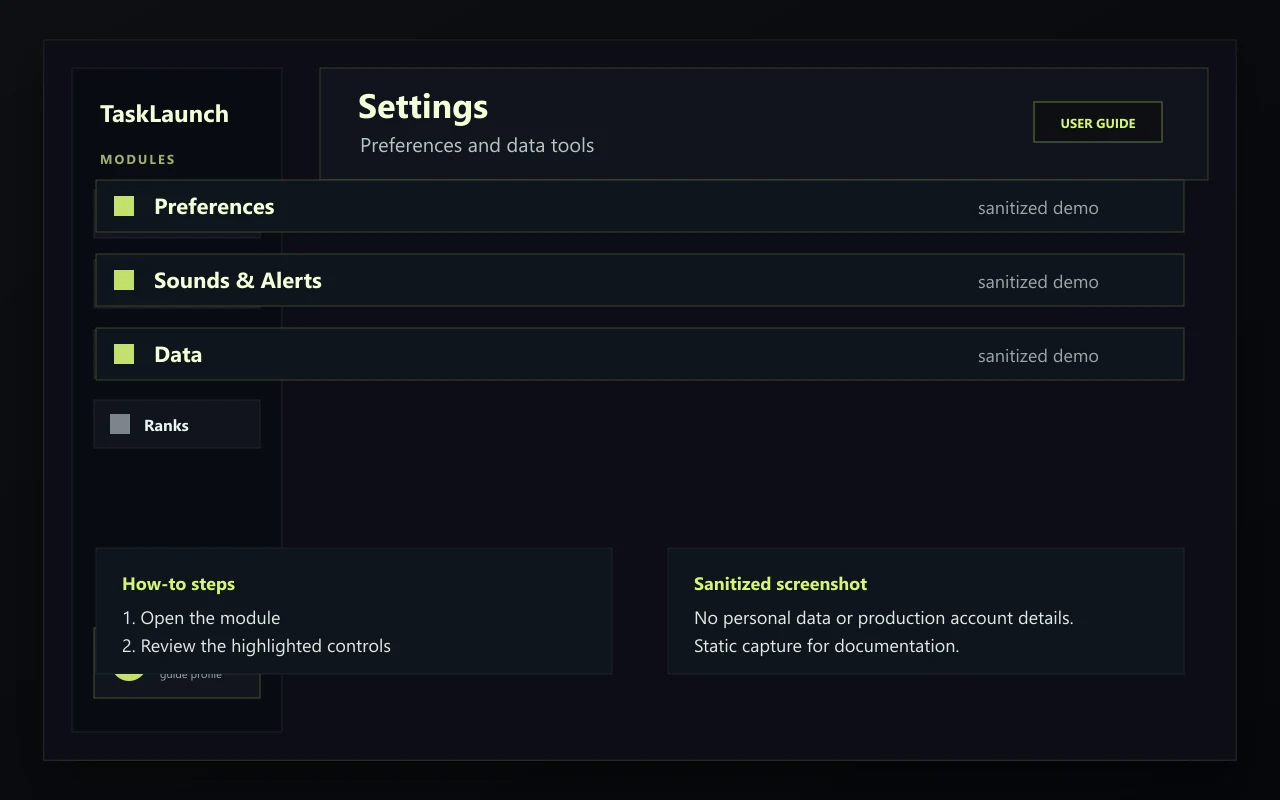
Sanitized TaskLaunch Settings screenshot showing settings modules and preferences.
Sanitized demo screenshot for Settings.

What it does

  • Settings is split into modules such as Preferences, Appearance, Sounds & Alerts, Notifications, Data, and About.
  • Desktop layouts show the settings list and detail pane together; mobile layouts open details after selecting a module.
  • Data tools include backup, import/export, History Manager access, and local reset actions.

How to use it

Change productivity preferences

  1. Open Settings.
  2. Choose Preferences.
  3. Adjust task behavior, dashboard options, or optimal productivity days.
  4. Return to the relevant module and confirm the behavior matches your workflow.

Manage data

  1. Open Settings.
  2. Choose Data.
  3. Use History Manager, export/import, or reset tools according to the maintenance task you need.

Tips

Settings choices are meant to reduce friction; revisit them when your workflow changes.

Use Reset All Data only when you intentionally want to remove local app data from the device.

10Support

Feedback

Send bug reports, feature ideas, general feedback, and optional PNG screenshot attachments.

Open module
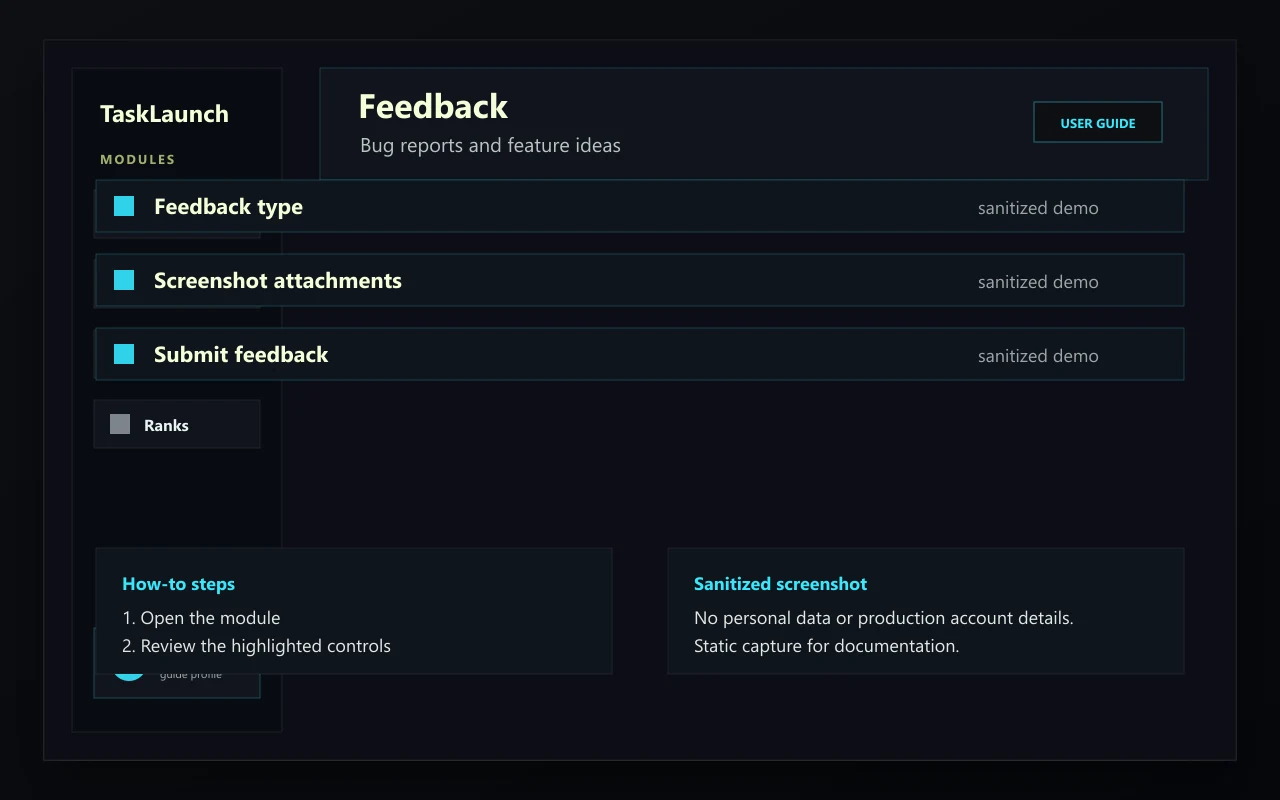
Sanitized TaskLaunch Feedback screenshot showing feedback form fields and submission controls.
Sanitized demo screenshot for Feedback.

What it does

  • Feedback helps report bugs, request enhancements, and explain workflow issues.
  • You can submit with an email address or choose anonymous logging where supported.
  • Pasted screenshots are processed as PNG attachments so visual issues can be understood more quickly.

How to use it

Submit useful feedback

  1. Open Feedback.
  2. Choose bug, feature, or general feedback.
  3. Add a short title and detailed reproduction steps or context.
  4. Paste screenshots into the details field when they clarify the issue.
  5. Submit after the form validation message is clear.

Tips

For bugs, include what you expected, what happened, and how to reproduce it.

For feature requests, describe the workflow problem rather than only the desired button or screen.